Alma TXT Export (One-Time Manual Method)

Modified on Mon, 23 Feb at 11:42 PM

When Should I Use This Method?

Use the Manual TXT Export method if:

  • You prefer not to use the OAI Publishing Profile method, or it is not suitable for your Alma configuration.

  • You require strict campus-level separation in a multicampus Alma (shared Institution Zone) environment.

  • You prefer snapshot-based exports instead of incremental publishing

If you are using the OAI Publishing Profile instead, please refer to the Alma Publishing Profile documentation.


One-Time Export Steps


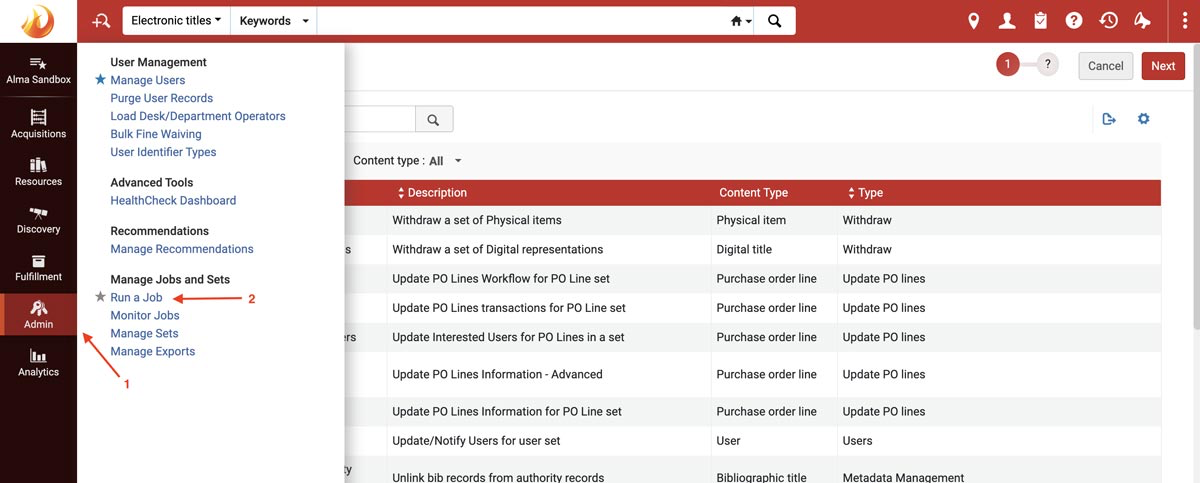
1. Go to Admin -> Manage Jobs and Sets -> Run a Job


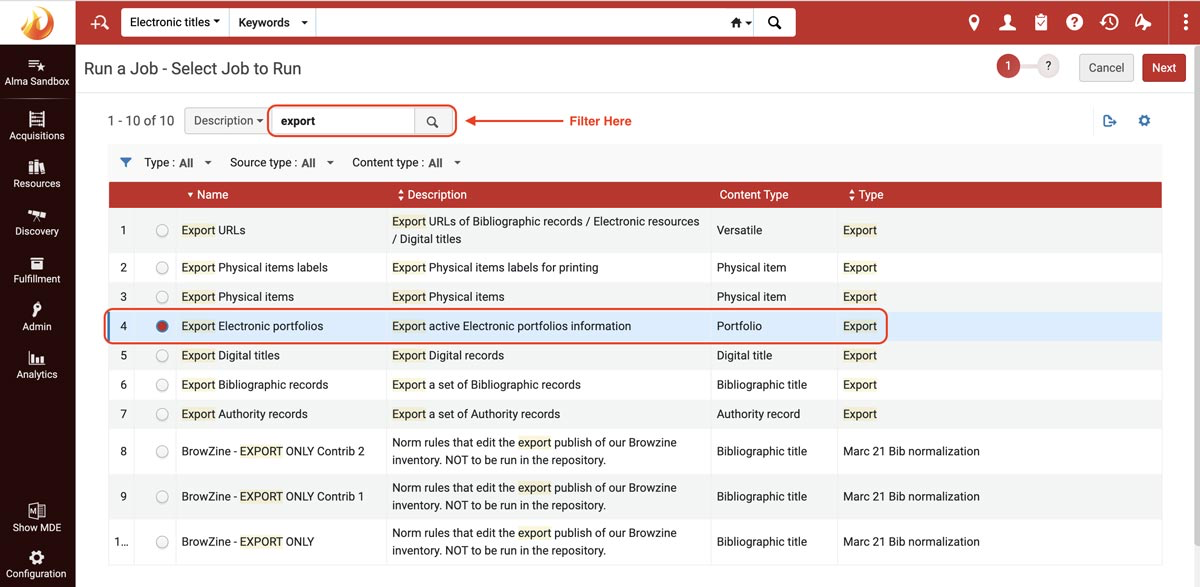
2. Select “Export Electronic Portfolios”


** If using a Title-level set (single-campus), select “Export Electronic Titles” instead.


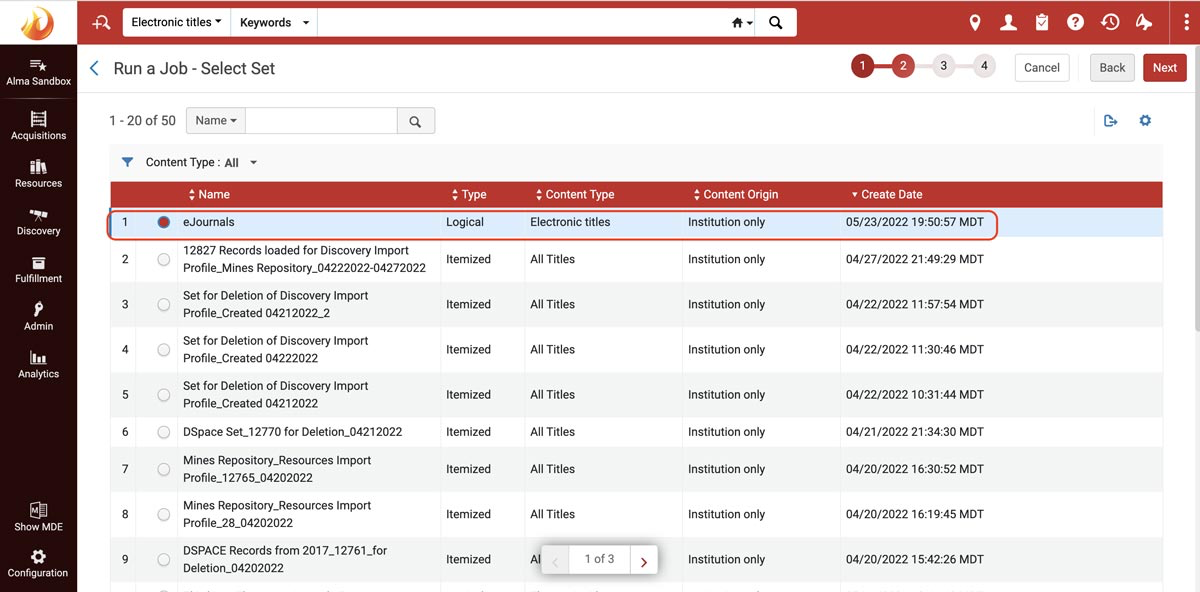
3. Select your defined logical set. 

Select the logical set you created for this export.


Single-Campus Alma: If you are a single-campus institution, we recommend defining your set as:

Electronic Titles where Material Type equals “Journal”


This results in one row per journal title in the export.


Multicampus Alma (Shared Institution Zone): If you operate in a multicampus Alma environment and require campus-level separation, we recommend defining your set as:

Electronic Portfolios where Material Type equals “Journal”


Your set should be scoped to include only the portfolios belonging to the intended campus. This may involve filtering by:

  • Campus code

  • Owning institution

  • Available for group

  • Local coverage


Portfolio-level sets typically provide more deterministic campus isolation.


Important: Do not mix Electronic Titles and Electronic Portfolios in the same export job.


The example below shows a set defined at the Electronic Titles level. Multicampus institutions using portfolio-level TXT export should instead define an Electronic Portfolios set.


If you need additional assistance in defining a set, please refer to the Ex Libris Manage Search Queries and Sets documentation, under the "Creating Logical Sets" section.

*** CONSORTIA MEMBERS ***

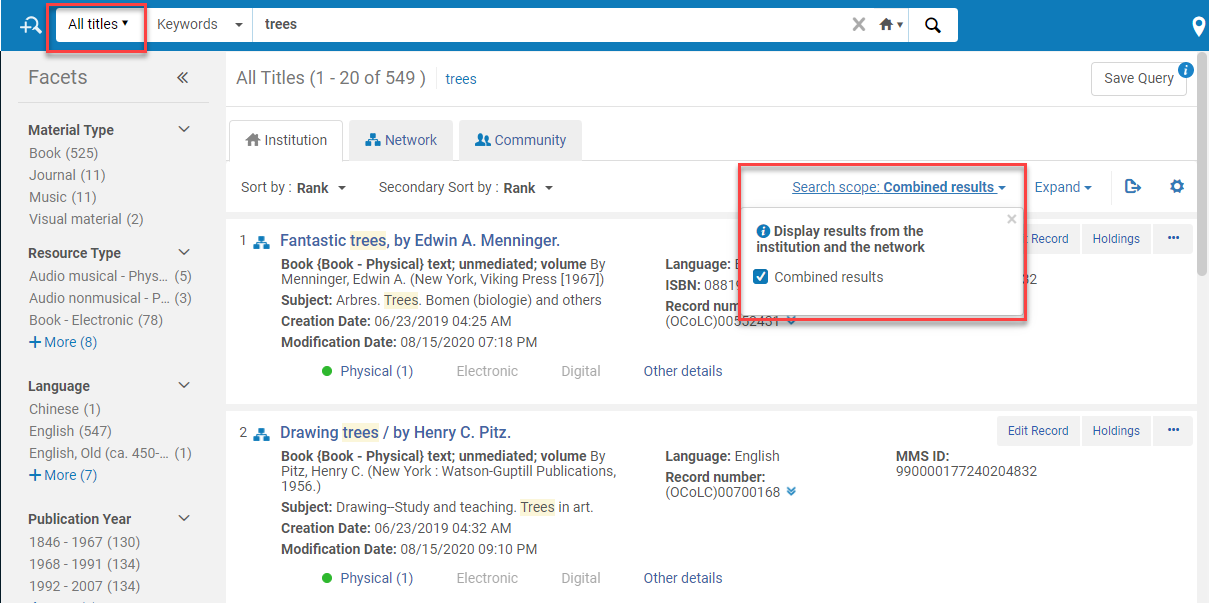
Use the Combined Results Filter to configure Alma to add the Network Zone (NZ) search results to the Institution tab (IZ).

First, contact Ex Libris to enable this feature for you. Once it's activated, use the option “Search scope: Combined results” in order to include in the set titles managed in the Network zone for you.


If you operate within a consortial or Network Zone (NZ) Alma configuration:

  • Determine whether the TXT export will be generated centrally or at the member level.

  • If exporting at the member level, ensure the defined Logical Set includes only the portfolios or titles belonging to that institution and aligns with the selected export job (Electronic Titles or Electronic Portfolios)..

  • If strict institutional separation is required, portfolio-level sets are typically recommended.


Because consortial configurations vary, confirm your scoping approach with your Alma administrator before generating your TXT file.


The example below illustrates a sample configuration with this option enabled.

The example above shows a set defined at the Electronic Titles level. Consortial or multicampus institutions using the TXT method may instead define their set at the Electronic Portfolios level when institutional separation is required.


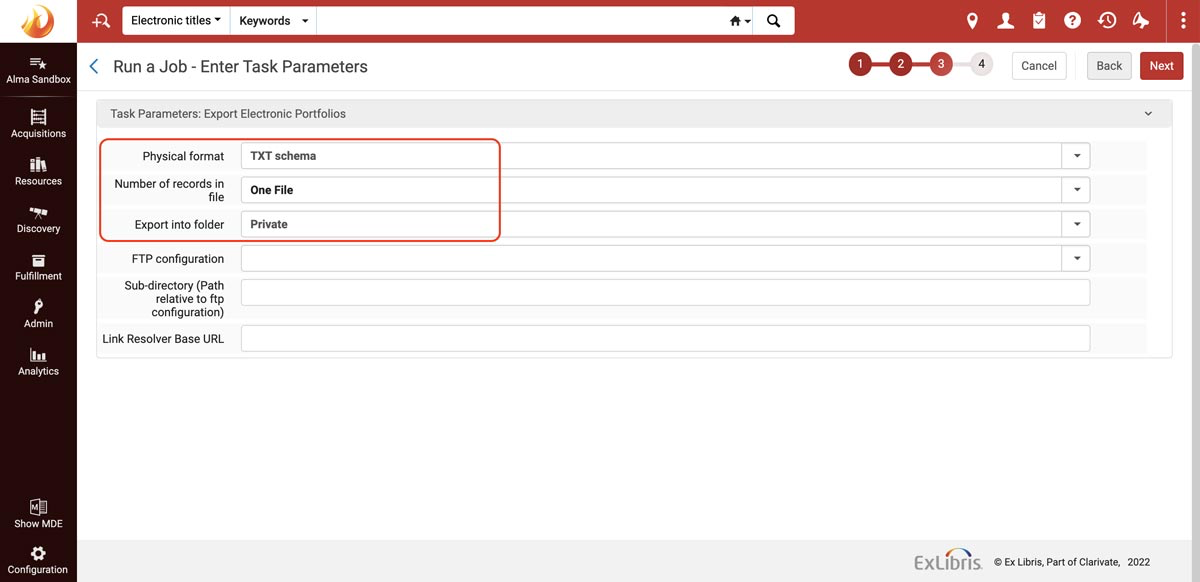
4. Configure the export task parameters:

* Physical Format: TXT schema
* Number of records in file: One File
* Export into folder: Private


The TXT schema will generate a tab-delimited file. Ensure date fields follow full ISO format (YYYY-MM-DD) where available. Do not modify the delimiter format or header row generated by Alma.
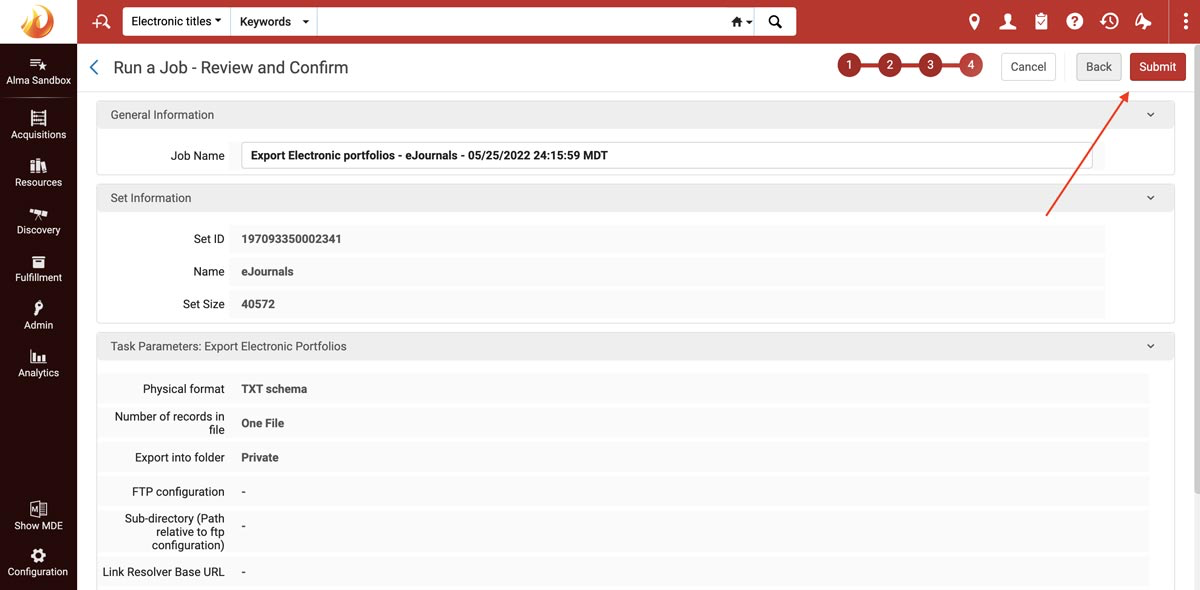


5. Review and Confirm


6. Download, then Zip, then Upload the File

Once the file is complete (it may take several minutes to fully process), download it to your local drive. Then compress it into a .zip folder and upload here: https://thirdiron.com/upload/


Do not modify column names or header structure before uploading the file.


We will be alerted once the file is uploaded and will process it, then confirm with you.

If you have any questions, please contact us at support@thirdiron.com.


For libraries using the manual TXT method, we recommend updating holdings monthly or whenever significant content changes occur. Subscribers may also request SFTP credentials to automate weekly updates.