When Should I Use the Automated TXT Export Method?
The Automated TXT Export method is recommended if:
You are using the TXT export workflow rather than the OAI Publishing Profile.
You operate in a multicampus or shared Institution Zone (IZ) environment and require strict campus-level separation of holdings.
You prefer snapshot-based exports delivered via SFTP.
If your institution is using the BrowZine OAI Publishing Profile method, please refer to the Publishing Profile documentation instead.
Configuration instructions
Please make sure you have already configured a SFTP Connection to our server at sftp.thirdiron.com. If you have not done so, please refer to the instructions here: Alma - Configuring a SFTP Connection
Once the SFTP Connection(s) have been set up, follow the instructions below to schedule the automation component. Note that you will need to follow these instructions for EACH campus that has an instance of BrowZine/LibKey.
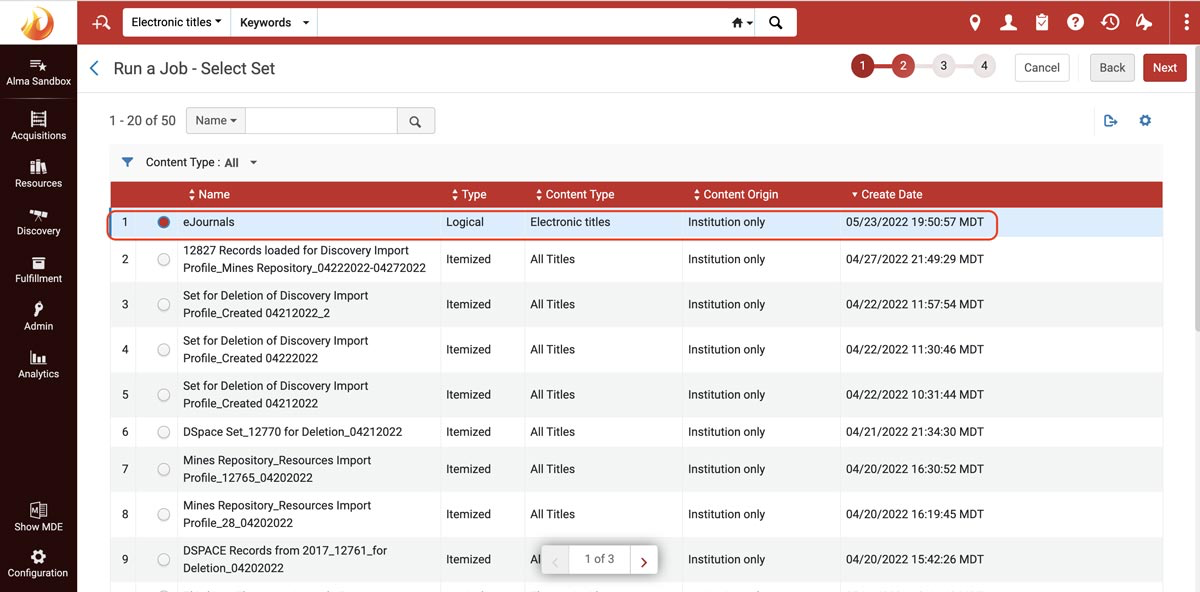
Select the logical set you created for this export.
Your set must include:
Material Type equals Journal
Multicampus or Shared Institution Zone (IZ) environments:
If you operate in a multicampus or shared Institution Zone (IZ) environment, your logical set must also include a campus-level filter, such as:
Available explicitly for equals [Campus Name]
or another locally configured campus ownership filter
This ensures only portfolios belonging to the intended campus are exported.
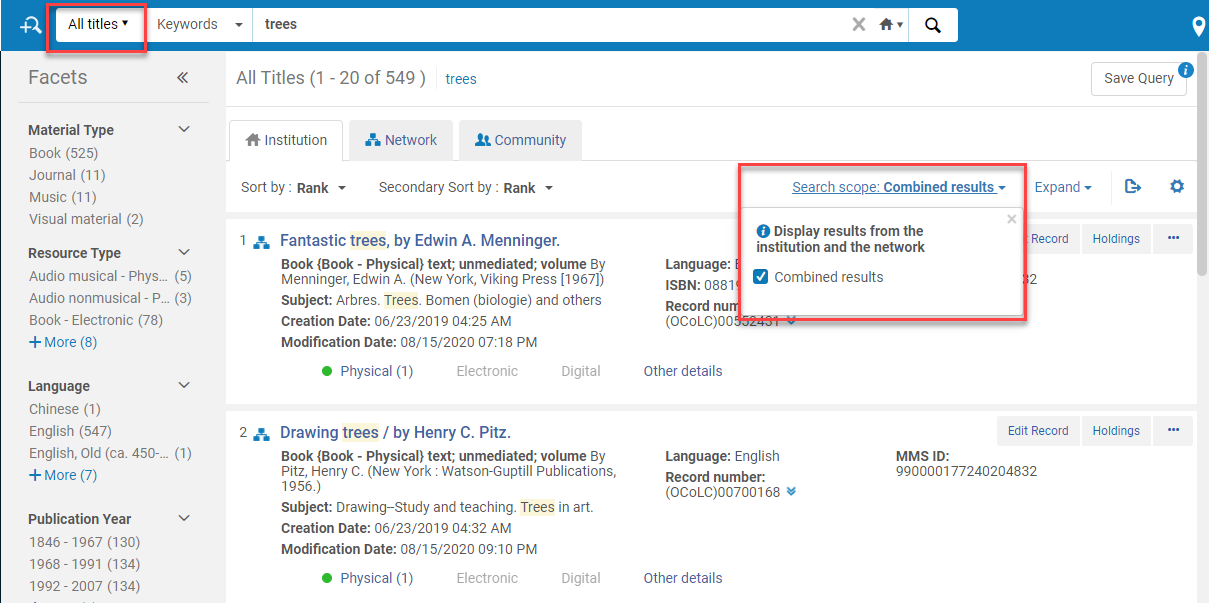
Contact Ex Libris if you do not see this option available.
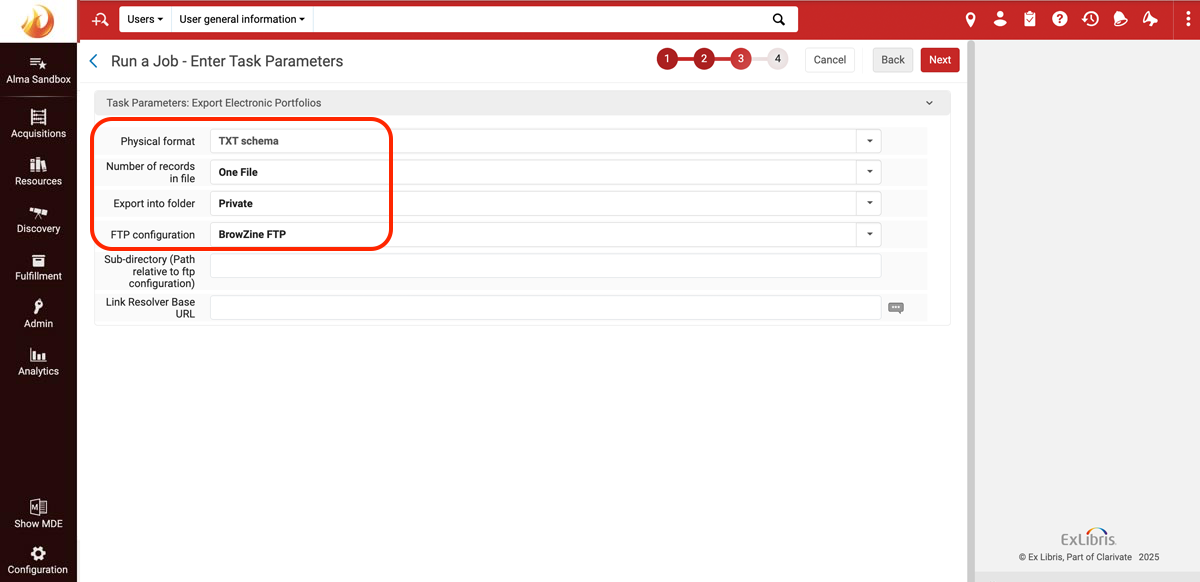
* Physical Format: TXT schema
* FTP configuration: Select your SFTP connection to sftp.thirdiron.com (often named “BrowZine FTP”)
Do not modify the generated TXT file structure or header fields. The automated job will deliver the file exactly as generated by Alma.
Schedule the job in the "Schedule" panel using the following settings:
* Frequency: Weekly
* Every: 1 week(s)
* On: Saturday (our system checks for updated files each Sunday, so scheduling the job on Saturday helps ensure timely processing)
* At: 10:00 (the time is not critical so you can adjust as needed to accomodate other tasks)
* Schedule Name: any name of your choosing - we recommend using "CAMPUS NAME - BrowZine" so that it's clear as to which campus this scheduled job belongs to.
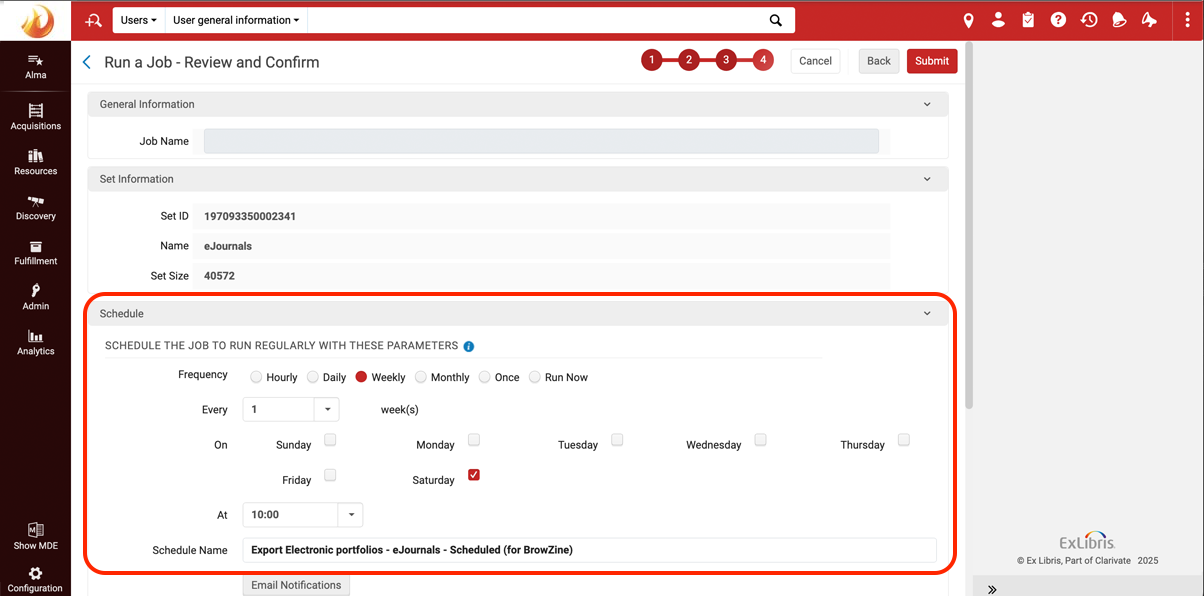
Hit Submit once done.
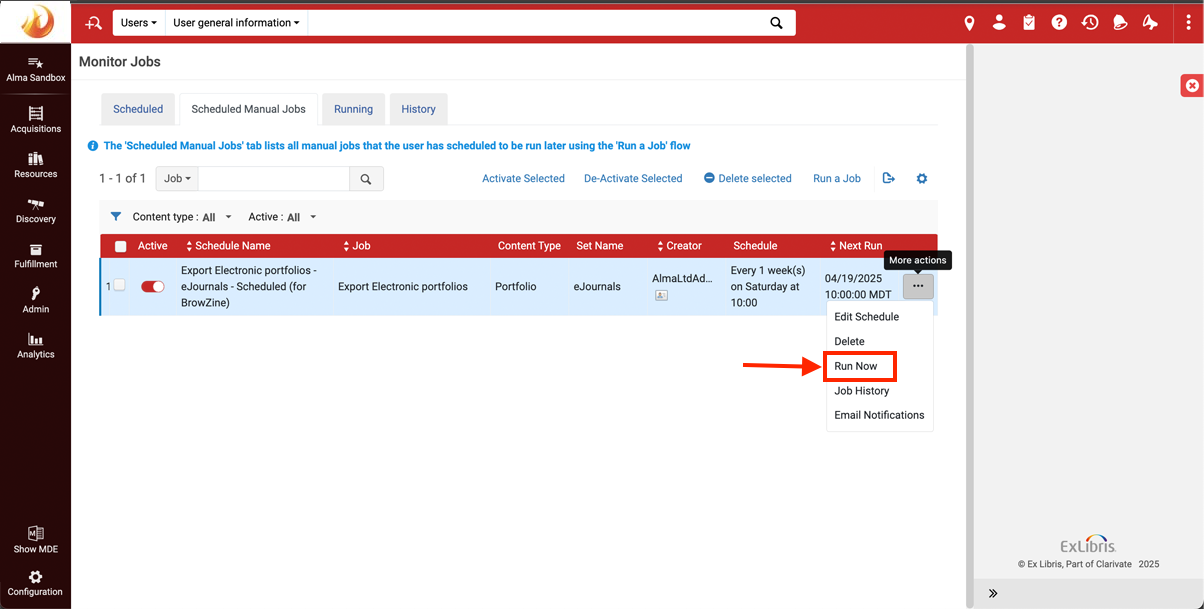
You should be deposited on the Scheduled Manual Jobs tab after you confirm, but if not you can navigate to
Admin > Monitor Jobs > Scheduled Manual Jobs to edit or delete schedules.
7. Notify Us
Once the schedule has been confirmed, please email us at support@thirdiron.com to confirm this has been set up so that we can "turn on" the automated updates on our end. Note that our scheduler will not run until we are notified that the Alma configuration is complete.
Running the job manually
If you ever need to run a manual update outside of the weekly automated schedule, you can do so by using the "Run Now" feature in the Options menu (three dots next to the scheduled job item).
Important: Updating the Logical Set Later
Once a scheduled “Export Electronic Portfolios” job is created in Alma, the Logical Set assigned to that job cannot be changed. You can still edit the Set itself, but the scheduled job will continue to use whatever Set was originally selected.
If you need to swap out the Set with a new one (for example, if you created a new Set with updated criteria), you must:
Create or update your Logical Set as needed
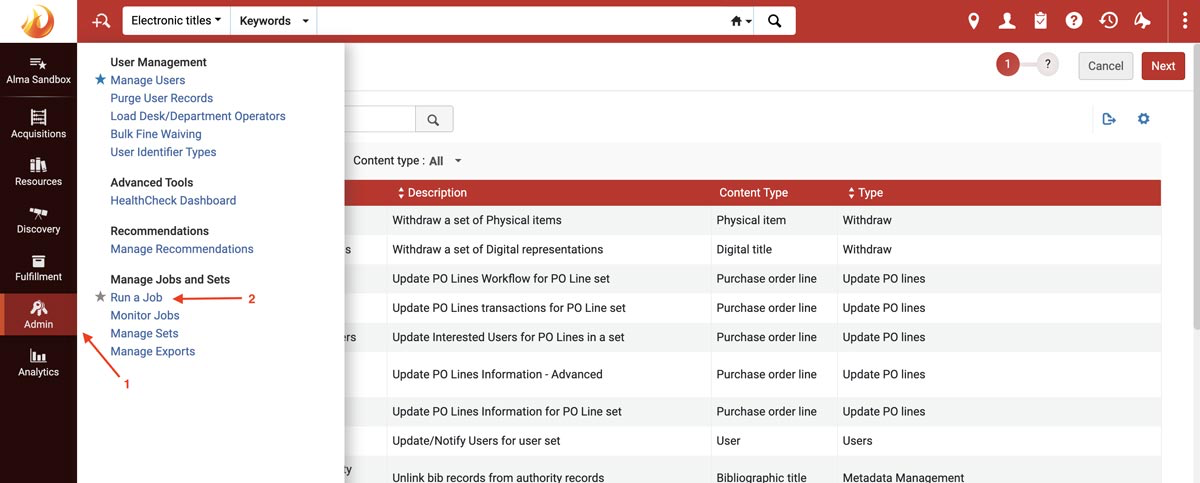
Go to Admin → Manage Jobs and Sets → Run a Job
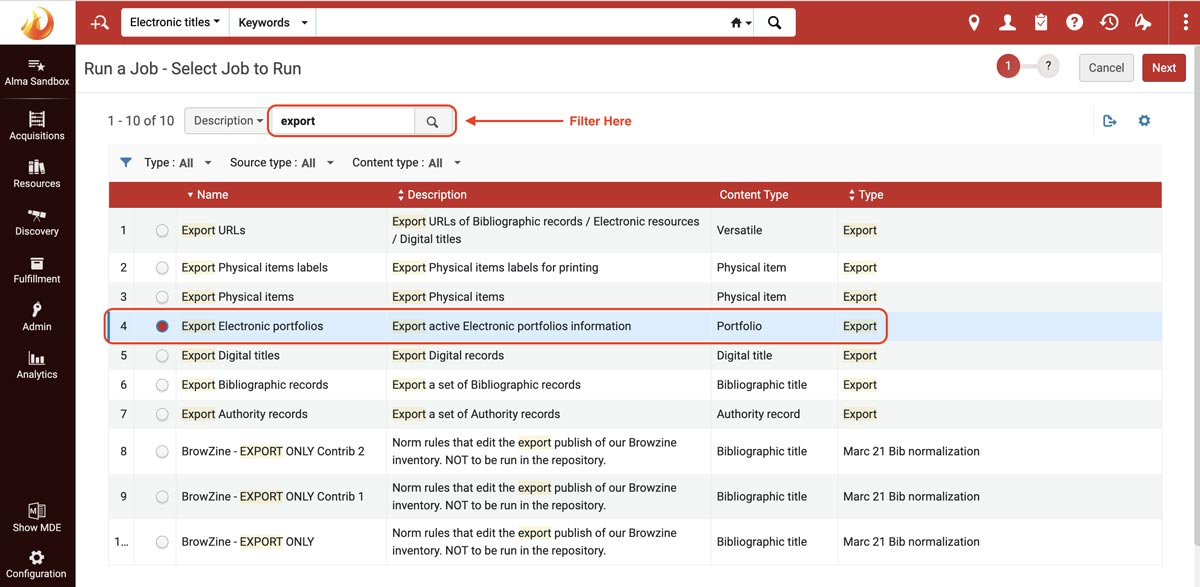
Select “Export Electronic Portfolios”
Choose the new Logical Set
Schedule the job again
Disable or delete the previous scheduled job to prevent multiple conflicting export files from being sent to the SFTP server.